LRO on Android: an SSH terminal with built-in tunnels
The LRO Android app is a real SSH terminal with an LRO agent built in. That combination is the point: you connect to your servers like any SSH client, and for the ones behind NAT you activate an LRO tunnel right from the phone and SSH to it — no laptop, no web panel, no public IP on the far side.
-
Install the app and add an SSH host
Install the LRO app on your phone and open it. The home screen is your list of SSH connections; tap + New to add one.
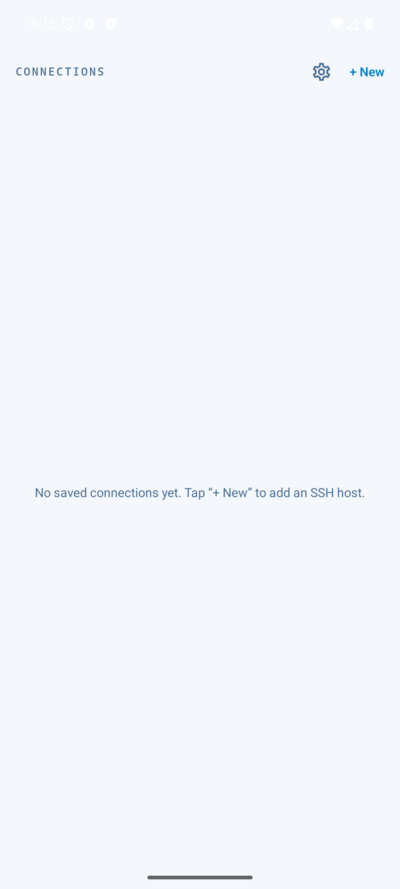
Fig 1. The connections list — your saved SSH hosts. 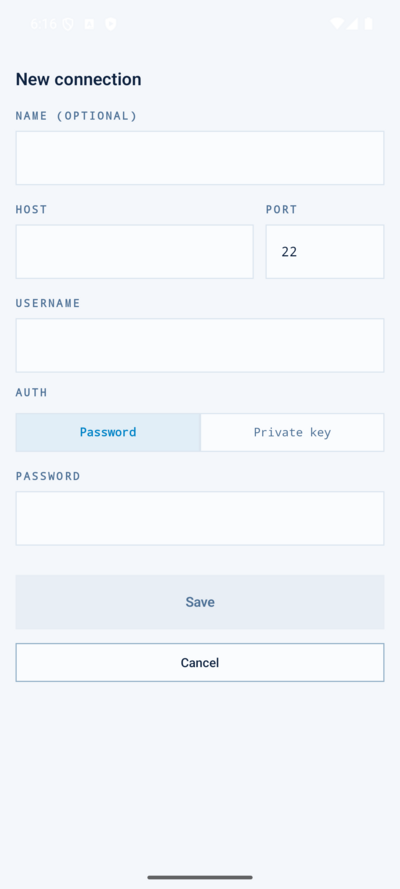
Fig 2. Add a host — name, host, port, username, and password or private key. Fill in the host, port and username, choose password or private key, and save. Tap the saved host to open a full terminal — ANSI colours, the special keys TUIs need, and key-based auth, all on the phone.
-
Sign in to manage tunnels
For machines with no public IP, open the app’s tunnel management and sign in with your LRO account. From here you can activate or deactivate tunnels without opening the web panel — the phone’s built-in agent provides the support side.
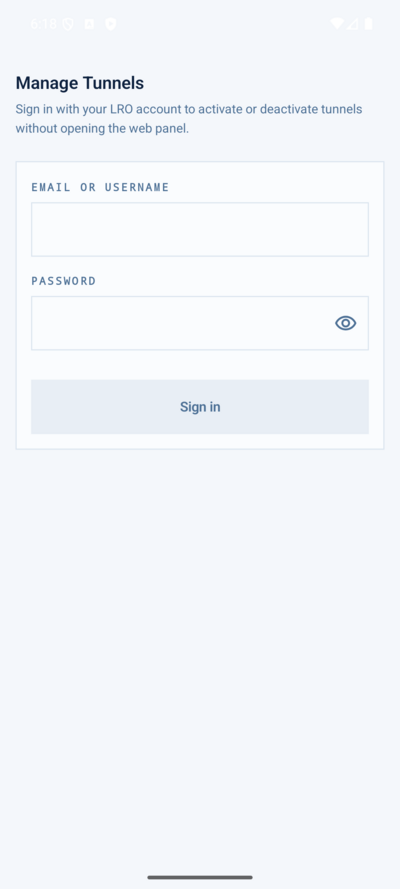
Fig 3. Manage tunnels from the phone — sign in with your LRO account to bring tunnels up or down. -
SSH to a machine behind NAT from your phone
With a tunnel active, the remote machine’s service is reachable on a local port on the phone. Add an SSH connection to that local port (host
127.0.0.1, the tunnel’s listen port) and connect — you get a shell on a box that has no public IP, straight from your pocket.It is the same model as SSH into a machine behind NAT, with the phone playing the support role. Set the endpoint up once in the panel (or on a laptop) and your phone can reach it any time.
Notes
- Terminal, done right — ANSI colour, a dynamic grid that fits the screen, an on-screen arrow pad, and the volume keys mapped to Ctrl/Shift so editors and TUIs (vim, mc, htop) work.
- Keys and trust — password or private-key auth, known-hosts with trust-on-first-use, and biometric unlock for stored secrets.
- Built-in agent — the app embeds an LRO agent, so the phone itself is the support side of a tunnel. No separate install on the phone.
- Behind NAT, from mobile — the whole point: reach servers that have no public IP from a phone that also has no public IP. Both just dial out.
Your servers, behind NAT or not — in your pocket.
Create an account →