Connect to a remote database behind NAT
You need to query a database — PostgreSQL, MySQL, Redis, MongoDB — that runs on a server with no public IP, and you want to use your normal client: psql, DBeaver, a migration tool. The right way is not to open the database port to the internet. With LRO the database keeps listening on localhost on its own machine, and you reach it on a local port on yours, through an encrypted tunnel.
-
Confirm the database listens locally
On the database machine, the server should listen on
127.0.0.1— the default for most installs. Nothing about it needs to face the internet; LRO connects to it from the same machine.$ ss -ltn | grep 5432 # postgres on 127.0.0.1:5432 (3306 for MySQL, 6379 Redis)This is the safe posture: the database is bound to loopback, so it is unreachable from the network directly, and LRO never changes that. The remote machine runs the LRO agent in Client mode; your computer runs it in Support mode.
-
Add the database endpoint on the client agent
In the panel, Endpoints → Create endpoint. Pick the client agent (the database machine), name it e.g. Office Postgres, and set target
127.0.0.1and port5432.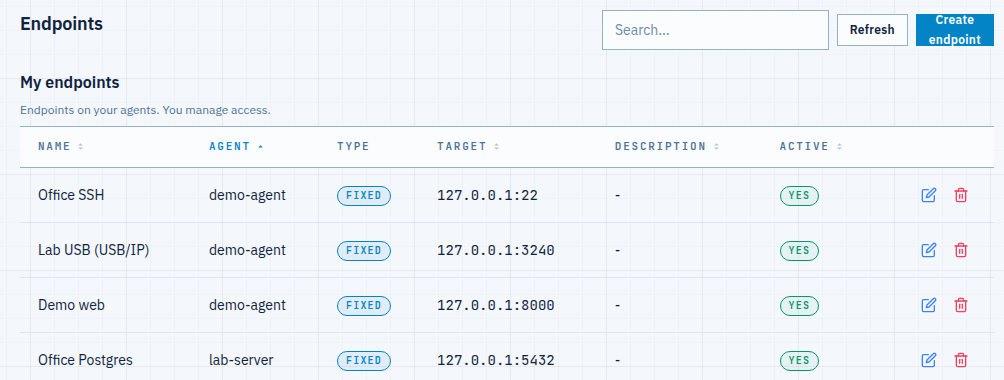
Fig 1. The database endpoint lives on the client agent — target 127.0.0.1:5432, the local Postgres. -
Open a tunnel from your machine
Tunnels → Add tunnel. Choose your computer as the support agent, pick the Office Postgres endpoint, and set a listen port — matching the database default (
5432) keeps client commands simple, but any free local port works. Create it; it goes Active in a moment.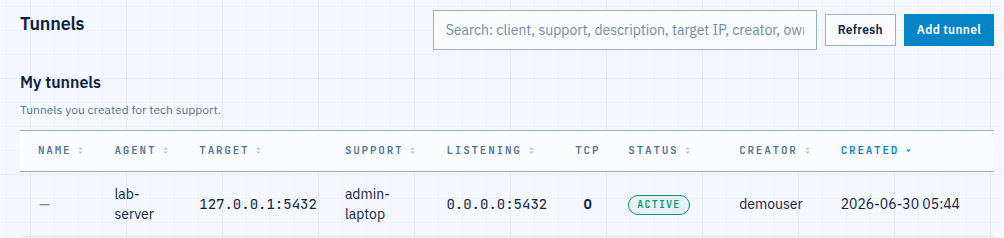
Fig 2. The active tunnel — your machine listens on 5432 and forwards to the remote 127.0.0.1:5432. -
Connect with your database client
On your computer, point your client at the listen port. The connection lands on the remote database through the tunnel — here with
psql:$ psql -h 127.0.0.1 -p 5432 -U appuser -d shopdb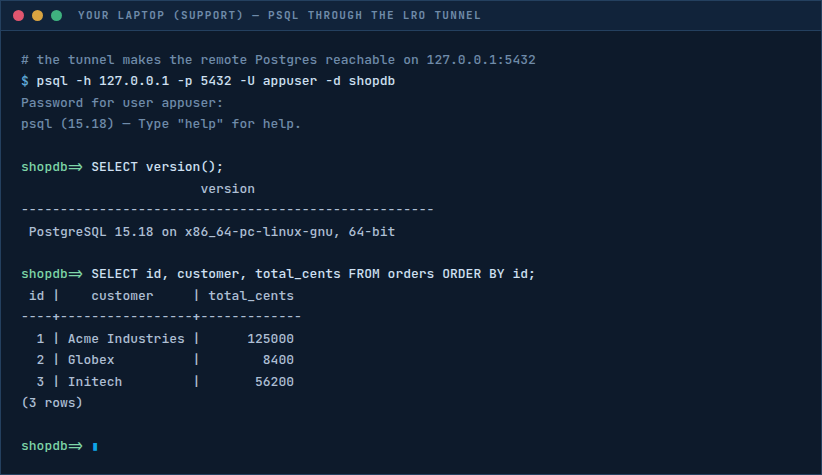
Fig 3. A real query against the remote database — over a port that only exists on your laptop. Everything that speaks the database protocol works the same way, pointed at the local port — dumps, restores, migrations:
$ pg_dump -h 127.0.0.1 -p 5432 -U appuser shopdb > shopdb.sql $ DATABASE_URL=postgres://appuser@127.0.0.1:5432/shopdb npm run migrateGUI clients are the same: in DBeaver, pgAdmin or TablePlus, set host
127.0.0.1and port5432— the tunnel does the rest.
Notes
- Any database, any TCP port — MySQL/MariaDB (
3306), Redis (6379), MongoDB (27017), SQL Server (1433). Only the target port and client tool change; the three LRO steps are identical. - The port is never exposed — the database stays bound to
127.0.0.1on its own machine and to a local port on yours. Nothing is opened to the public internet at any point. - Lock it down — set Allowed addresses (ACL) on the tunnel so only your machine can use the listener, and keep the database’s own authentication on. The tunnel is transport, not a substitute for DB credentials.
- Same as any TCP service — the mechanics match reaching SSH behind NAT; a database is just another port.
Query any database, anywhere — without exposing a single port.
Create an account →