Install the agent on Linux, Windows or macOS
The LRO agent is a single, lightweight binary with no dependencies. The pattern is the same on every platform: install it, register it once with a one-time token, then run it — and optionally have it run as a background service. This guide covers all three operating systems and the desktop GUI.
-
Get a registration token
In the panel, Agents → Register. Give the agent a name, choose its mode, and copy the one-time token. You will paste it on the machine in a moment; the token is single-use and short-lived.
-
Install on Linux
Run the one-line installer. It fetches the right binary and opens a small manager menu — install/update the binary, register the agent, run it, or install it as a service.
$ curl -fsSL https://lro.link/install.sh | sh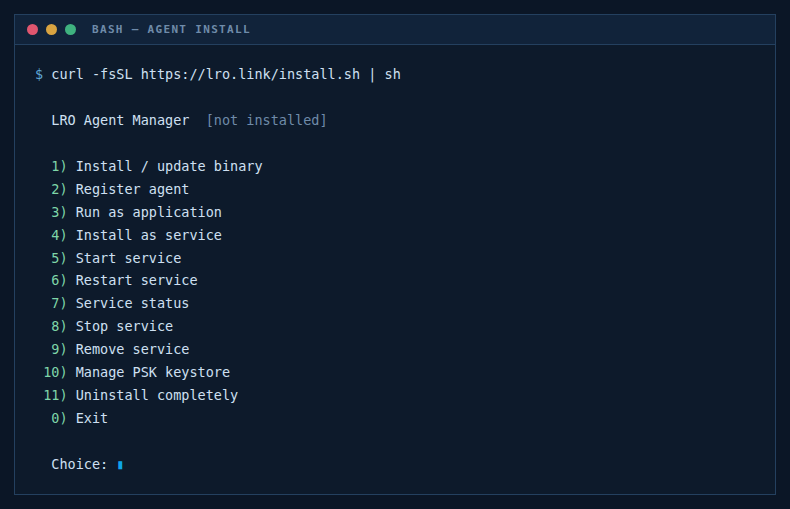
Fig 1. The Linux installer menu — install the binary, register with your token, run, or install as a service. Choose Install / update binary, then Register agent (paste the token), then Run as application — or Install as service for unattended start. You can also do it by hand:
$ lro -t - # paste the token on stdin (keeps it out of the process list) $ lro # run the agent -
Install on Windows
From the panel, Agents → Download the Windows build and unzip
lro.exeinto a folder, e.g.C:\LRO\. Open PowerShell in that folder, register with your token, and run it.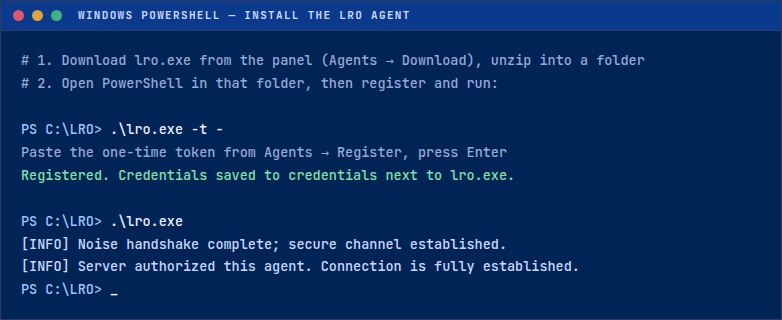
Fig 2. On Windows — register lro.exewith the token, then run it from PowerShell.For unattended start, run it under Task Scheduler or a service wrapper (NSSM) — the panel docs cover the exact steps.
-
Install on macOS, or use the GUI
On macOS, download the build for your chip (Intel or Apple Silicon), then register and run from Terminal exactly as on Linux (
./lro -t -then./lro). The binary is unsigned, so on first launch use right-click → Open to get past Gatekeeper.Prefer not to touch a terminal? The desktop GUI (Linux, Windows and macOS) does the same from a window: paste the token to register, then run — and it doubles as a small control panel.
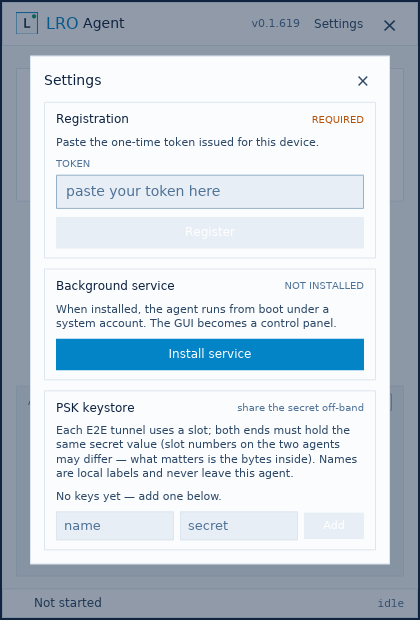
Fig 3. The desktop GUI — register and run from a window, no terminal needed. -
Run as a service
For a machine that should always be reachable, install the agent as a service / daemon so it starts on boot and runs under a system account — on Linux from the installer menu (Install as service), on Windows via Task Scheduler / NSSM, on macOS via a launch agent, or with one click from the desktop GUI’s Install service button.
When the agent runs as a service, the GUI (if installed) becomes a control panel for it — you can close the window and the agent keeps running in the background.
Notes
- One binary, no dependencies — the console agent is a static build; nothing else to install. Idle footprint is a few MB of RAM and effectively no CPU.
- Role is set at registration — the token carries the mode; you can also force a role with
lro --mode client|support|dualor change it later from the panel. See agent roles. - The token is one-time — after registration the agent stores its own credentials. Lost the file or moving hardware? Re-register for a fresh token.
- Every platform, same model — Linux (x86_64 / ARM64), Windows and macOS (Intel / Apple Silicon), console or GUI.
Install once, register once, reachable from anywhere.
Create an account →