Reach a device’s web panel behind NAT
Routers, switches, NAS boxes, IP cameras, PLCs, printers, server BMC/IPMI — almost every device has a web admin panel, and almost none of them should be exposed to the internet. With LRO you reach that panel from your own browser, through an encrypted tunnel, while the device stays where it belongs: on its private network, invisible from outside.
-
Find the device address from a machine on its network
From the machine that will run the client agent, confirm it can reach the device’s web panel. The device’s address is whatever that machine uses — the device’s LAN IP (e.g.
192.168.1.1), or127.0.0.1if the panel runs on the agent machine itself.$ curl -sI http://192.168.1.1/ # the router admin, reachable on the LANThis machine runs the LRO agent in Client mode; your computer runs it in Support mode.
-
Add the device endpoint on the client agent
In the panel, Endpoints → Create endpoint. Pick the client agent, name it e.g. Edge Router admin, and set target to the device address as seen from the agent — the device’s LAN IP, or
127.0.0.1when the panel is on the agent machine — and the panel’s port (80,443,8080…).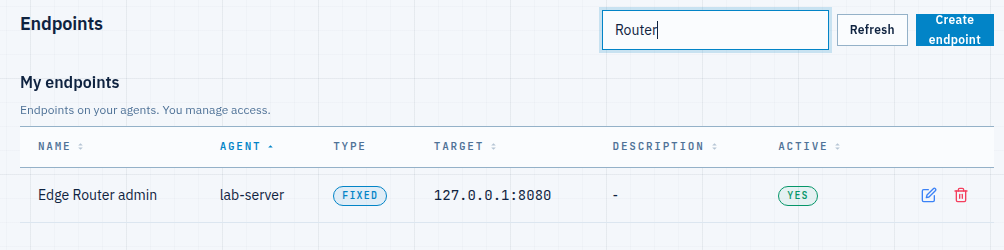
Fig 1. The device endpoint on the client agent — here the panel runs on the agent machine (127.0.0.1:8080); for a separate device use its LAN IP. -
Open a tunnel from your machine
Tunnels → Add tunnel. Choose your computer as the support agent, pick the Edge Router admin endpoint, and set a listen port (e.g.
8080). Create it; it goes Active in a moment.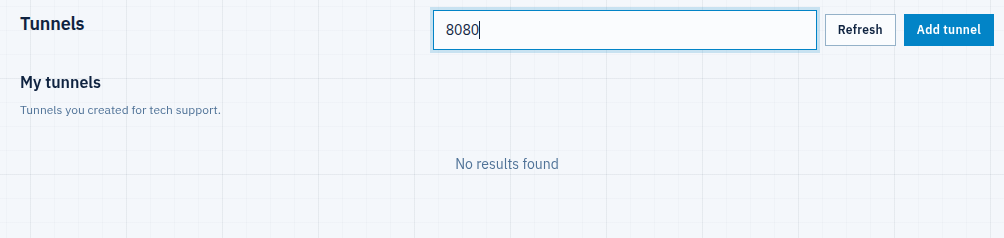
Fig 2. The active tunnel — your machine listens on 8080 and forwards to the device panel. -
Open the panel in your browser
Browse to
http://127.0.0.1:8080on your computer. The device’s admin UI loads through the tunnel, fully interactive — log in, change settings, read status, exactly as if you were on its LAN: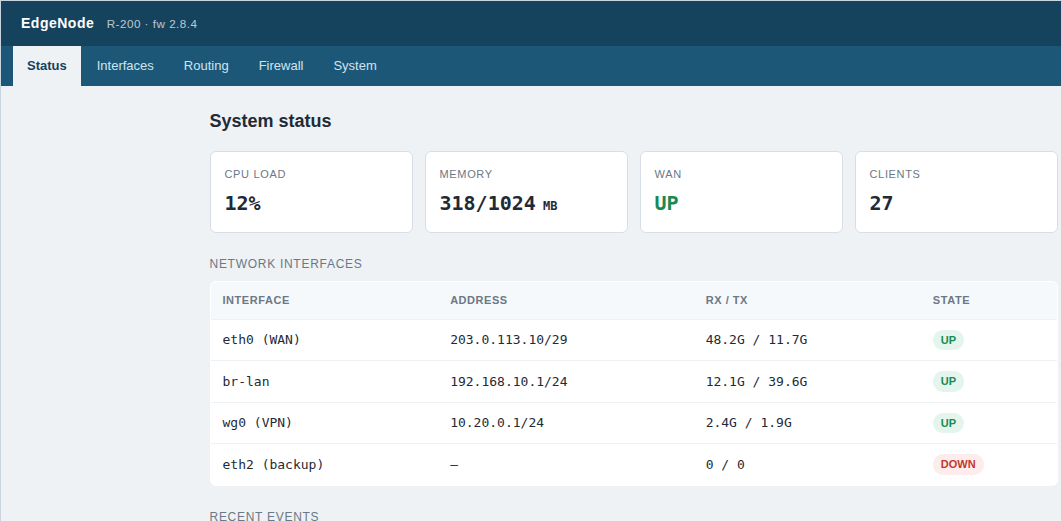
Fig 3. The remote device’s web panel, in your browser over the tunnel — its web port never left the private network. HTTPS panels work the same way — browse to
https://127.0.0.1:<port>(you may need to accept the device’s self-signed certificate, just as you would on its LAN).
Notes
- One agent, many devices — a single client agent on a network can expose several devices: add one endpoint per device (each with that device’s LAN IP and port). No agent on the device itself required.
- Nothing is exposed — the device keeps its panel on the private network; you reach it on a local port on your machine. No port-forwarding on the site router, no device on the public internet.
- Lock it down — set Allowed addresses (ACL) on the tunnel, and keep the device’s own login. Exposed device panels are a top target for scanners; a tunnel keeps yours off the radar entirely.
- Any web port —
80,443,8080, or a vendor’s odd port; only the endpoint port changes.
Manage every device on a remote site — from one browser, nothing exposed.
Create an account →