Monitor tunnels and traffic in real time
Everything in the LRO panel is live. When an agent connects, a tunnel opens, or bytes flow, the panel reflects it within moments — you never press refresh. This short tour shows the three places you watch: the dashboard for the big picture, the tunnels and agents pages for state, and the stream log for per-connection detail.
-
Read the dashboard at a glance
The Dashboard is the home view: how many agents are online, how many tunnels are active, your endpoint and user counts. The numbers update on their own as agents connect and tunnels open or close.

Fig 1. The dashboard tiles — active tunnels, agents online and totals, updated live. -
Watch tunnels and agents change state live
The Tunnels page lists every tunnel with its client and support agents, the listen address, status and creator. An agent dropping out flips its tunnels to a non-active state and the Agents page shows it offline — in real time, without reloading. Status badges and the ping column move on their own.
This is by design: state is pushed to the panel the instant it changes on the server, not polled on a timer. A dropped agent, a reconnect, a tunnel going active — you see each transition as it happens. -
Inspect per-stream traffic in the stream log
Streams (stat.) is the detailed view: one row per connection through a tunnel, with the time it opened, duration, the client and support agents, source and destination, and bytes transferred. Filter by tunnel or agent, or tick Only active to see what is live right now. The header shows the active count and traffic in the current window.
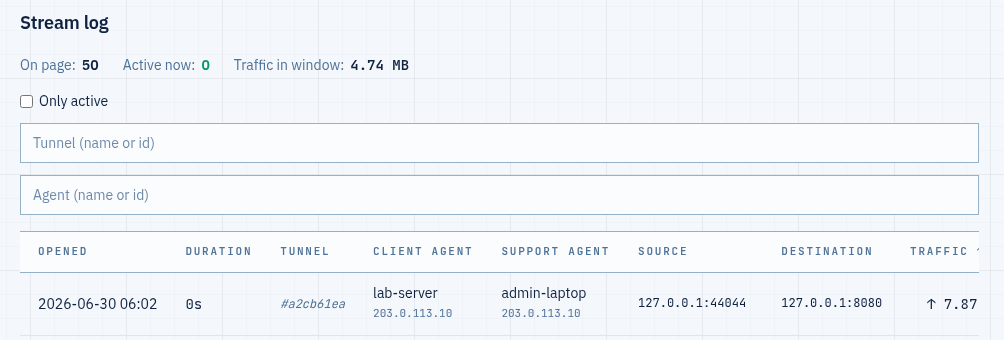
Fig 2. The stream log — every connection through your tunnels, with live traffic per stream. Traffic shown here is the same traffic your plan is billed on — so the stream log doubles as a usage breakdown: which tunnel, which agent pair, how many bytes. To turn that into coins and balance, see traffic, coins and top-ups.
Notes
- No refresh, ever — agent online/offline, tunnel status, stream counts and traffic are pushed to the panel as they change. Leave a page open and it stays current.
- Filter to what matters — the stream log filters by tunnel or agent and can show only active streams; the tunnels and agents pages have search too.
- Accountability — for who did what (opened a tunnel, granted a permission), the org Audit log complements these live views with a permanent record. See permissions and access control.
See every agent, tunnel and byte — live.
Create an account →