Remote desktop (RDP / VNC) through a tunnel
You want the full graphical desktop of a machine that has no public IP — a Windows server’s screen over RDP, or a Linux box over VNC — and you want it from your own computer, with your normal client. As always with LRO, the desktop port stays bound to localhost on the remote machine; you reach it on a local port on yours, over an encrypted tunnel. Port 3389 never faces the internet.
-
Confirm the desktop service is running
On the remote machine, the desktop service should be listening locally:
- Windows / RDP — enable Remote Desktop (System → Remote Desktop). It listens on
3389. Keep Network Level Authentication on. - Linux / VNC — run a VNC server (TigerVNC, x11vnc) bound to
127.0.0.1, typically on5901.
$ ss -ltn | grep -E ':3389|:5901' # RDP and/or VNC listening locallyThe remote machine runs the LRO agent in Client mode; your computer runs it in Support mode.
- Windows / RDP — enable Remote Desktop (System → Remote Desktop). It listens on
-
Add the desktop endpoint on the client agent
In the panel, Endpoints → Create endpoint. Pick the client agent (the remote machine), name it e.g. Office Desktop, and set target
127.0.0.1and port3389(RDP) or5901(VNC).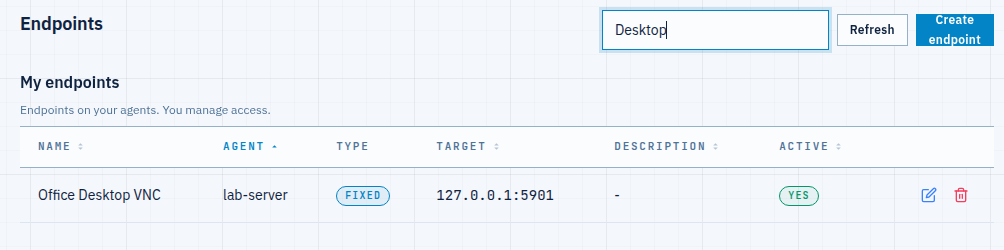
Fig 1. The desktop endpoint lives on the client agent — here a VNC display at 127.0.0.1:5901. -
Open a tunnel from your machine
Tunnels → Add tunnel. Choose your computer as the support agent, pick the Office Desktop endpoint, and set a listen port — matching the service default keeps the connect command simple. Create it; it goes Active in a moment.
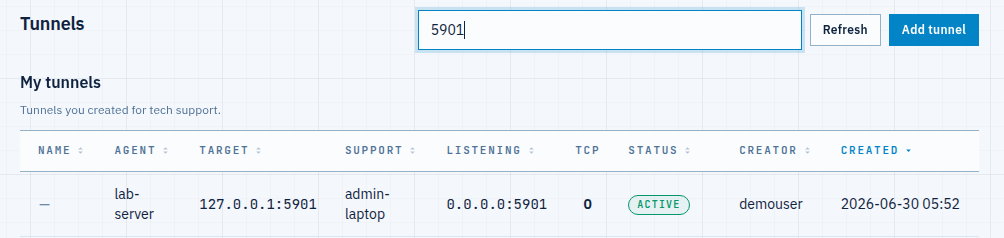
Fig 2. The active tunnel — your machine listens on 5901 and forwards to the remote desktop. -
Connect with your desktop client
On your computer, point your viewer at the listen port. The session lands on the remote desktop through the tunnel:
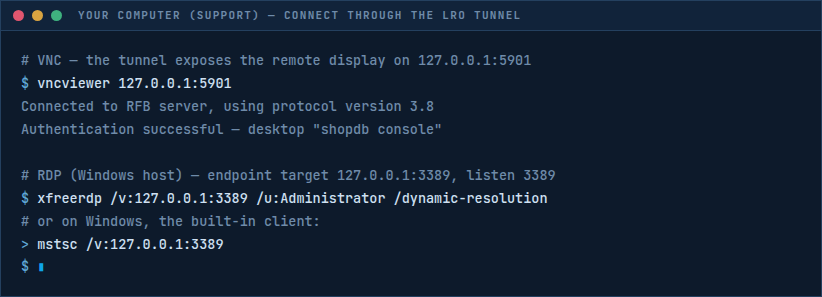
Fig 3. Connecting — VNC with vncviewer, RDP withxfreerdpor Windowsmstsc, all pointed at the local port.… and the remote desktop appears, exactly as if the machine were on your desk:
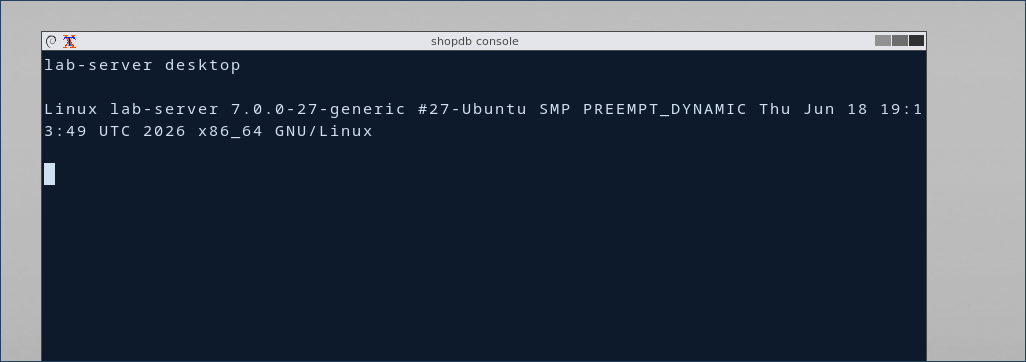
Fig 4. The remote desktop, rendered on your machine over the tunnel — a live GUI session, port 5901 never exposed.
Notes
- RDP and VNC both work — only the port and viewer change (RDP
3389+mstsc/xfreerdp; VNC5901+ any VNC viewer). The three LRO steps are identical. - Nothing is exposed — the desktop port stays on
127.0.0.1on the remote machine and on a local port on yours. No inbound rule, no public RDP (which is a constant target for scanners). - Keep the desktop’s own auth — RDP’s Network Level Authentication, a VNC password. The tunnel is the transport; account security is still yours.
- Lock it down — set Allowed addresses (ACL) on the tunnel so only your machine can use the listener.
- Performance — interactive desktops are sensitive to latency; over a decent link the experience is close to local. The bottleneck is the network path, not LRO.
Reach any desktop, anywhere — without exposing RDP to the internet.
Create an account →